Home Monitoring Dashboard Design
When I start making a prototype, I normally do this in online tools such as Invision. The problem with these tools is that it’s not possible to show transition animations, because the prototype is made out of a couple images with hotspots on them. When that hotspot gets clicked on, the tool will just redirect the user to another image.
I’ve always wanted to make my prototypes more interactive. I usually work in Sketch when I’m designing user interfaces, and one day I read that it was possible to implement Sketch files in a program named Principle. I really wanted to try it out, so I came up with a little project for myself. I decided to design a home monitoring dashboard prototype in which I put lots of transitions. With this I wanted to see if Principle was a suitable application for me.
Designing the screens
Moodboard
I started to gain inspiration by putting together a number of examples of dashboards using a moodboard. In this moodboard I also put some inspiration for animations.
Design
By looking at different dashboards, I noticed that a dashboard is divided into different surfaces. These surfaces are on top of the background. This allows the surfaces to be separated from each other with some whitespace.
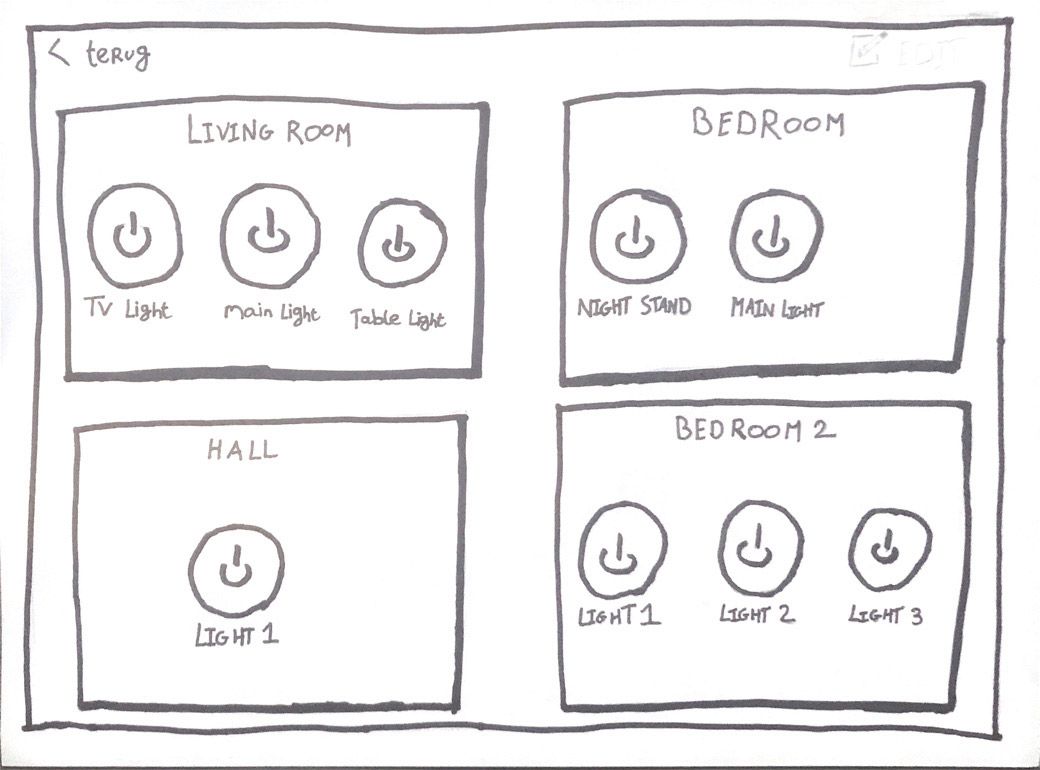
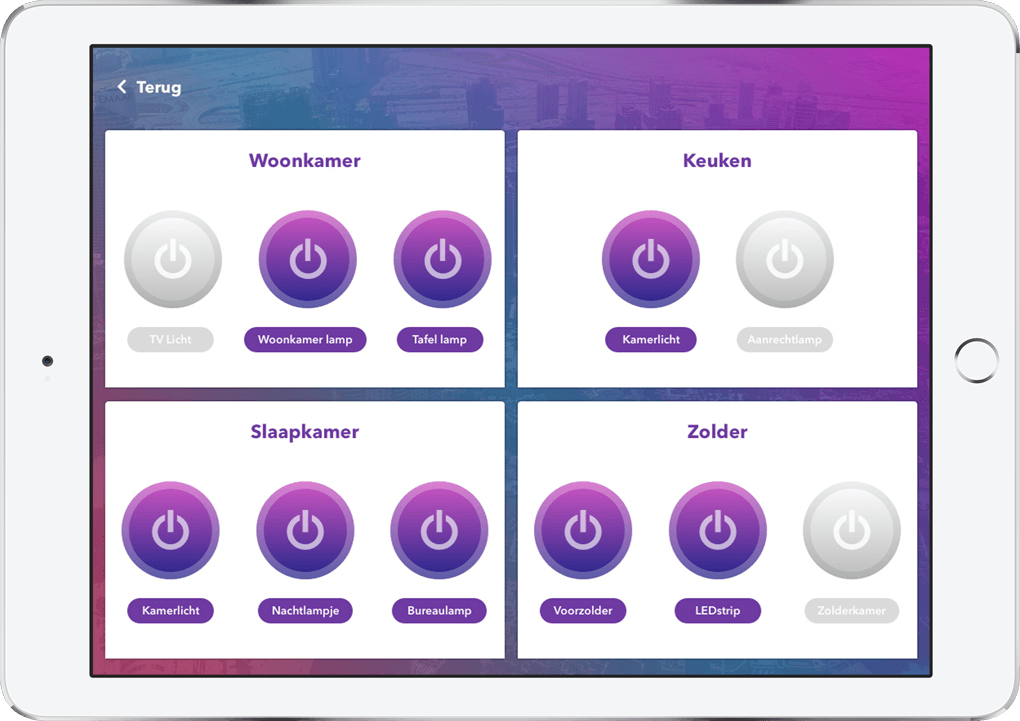
I also see that it is possible to change a number of settings in the areas of the dashboard. However, these are basic settings such as switching certain lights on and off. If, for example, the user wants to to add more lamps, they can go to the settings of the relevant area.
The information
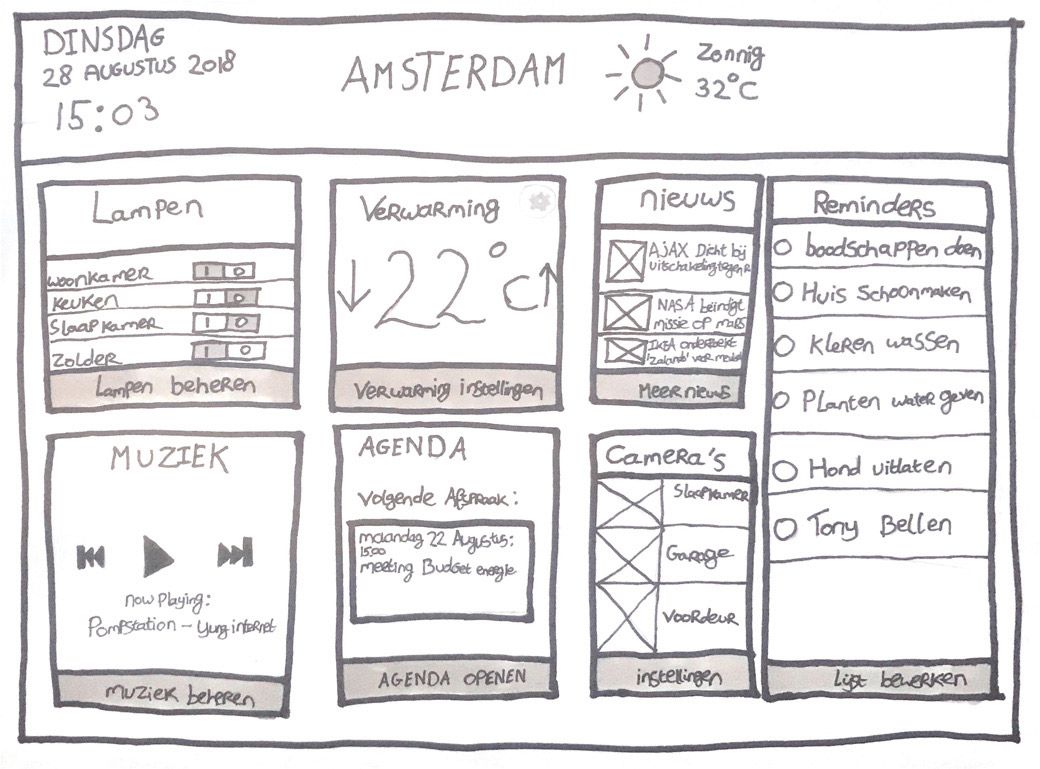
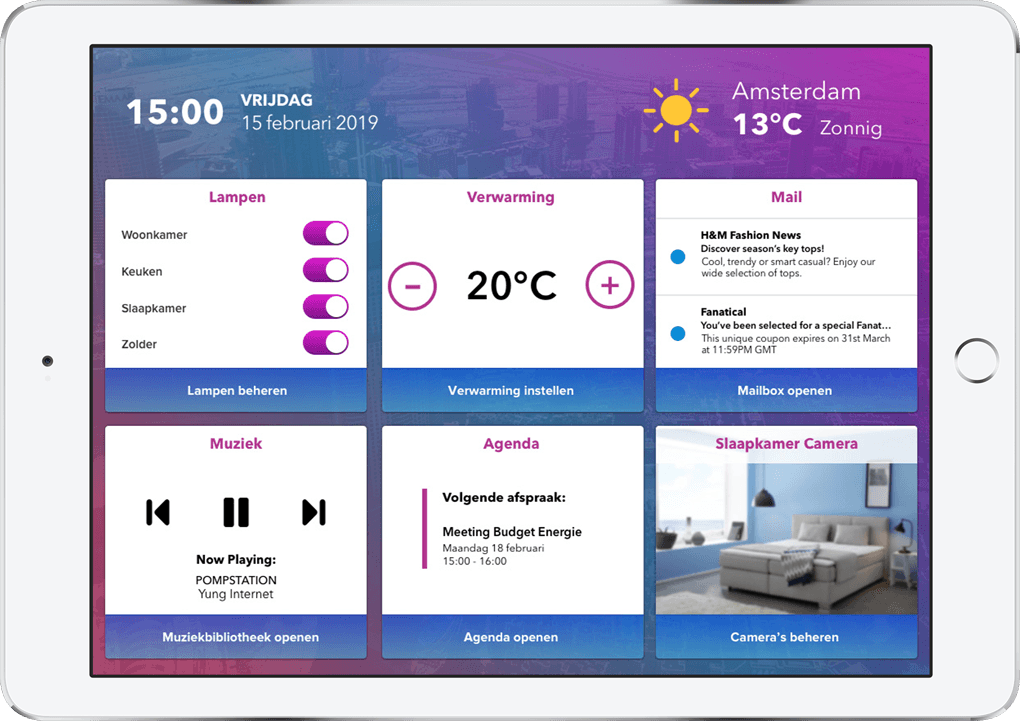
Aside from the settings, I have also looked at the information displayed on the dashboard itself. It was a lot, so I took out a few that I wanted to show on my home monitoring dashboard. These are:
- Time and Date.
- Weather + Location.
- Lamps on/off state.
- Temperature of the house.
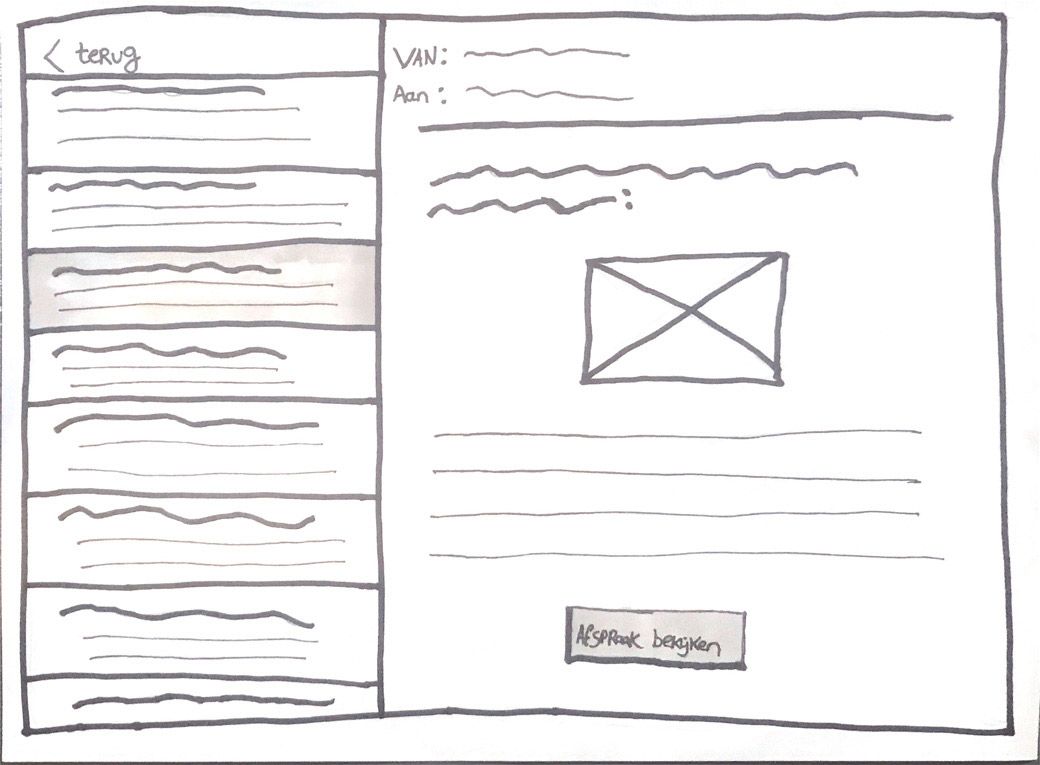
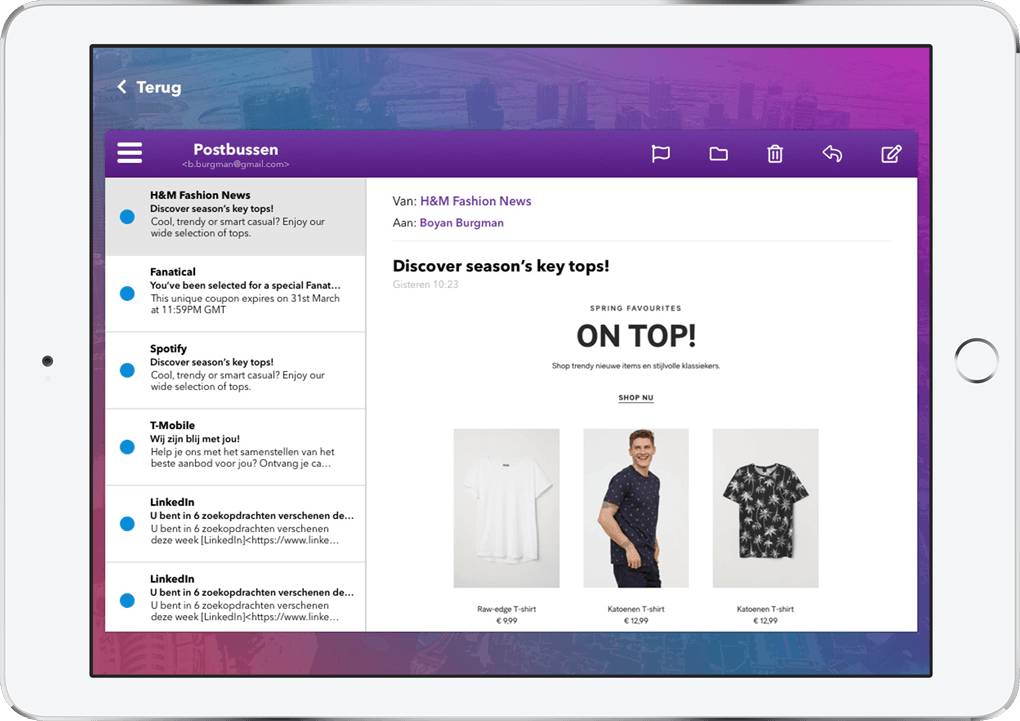
- The users latest received emails.
- Music.
- The user's next appointment.
- Home security camera feed.
Wireframes
The information shown in the wireframes below may differ from the information that will appear in the final prototype.
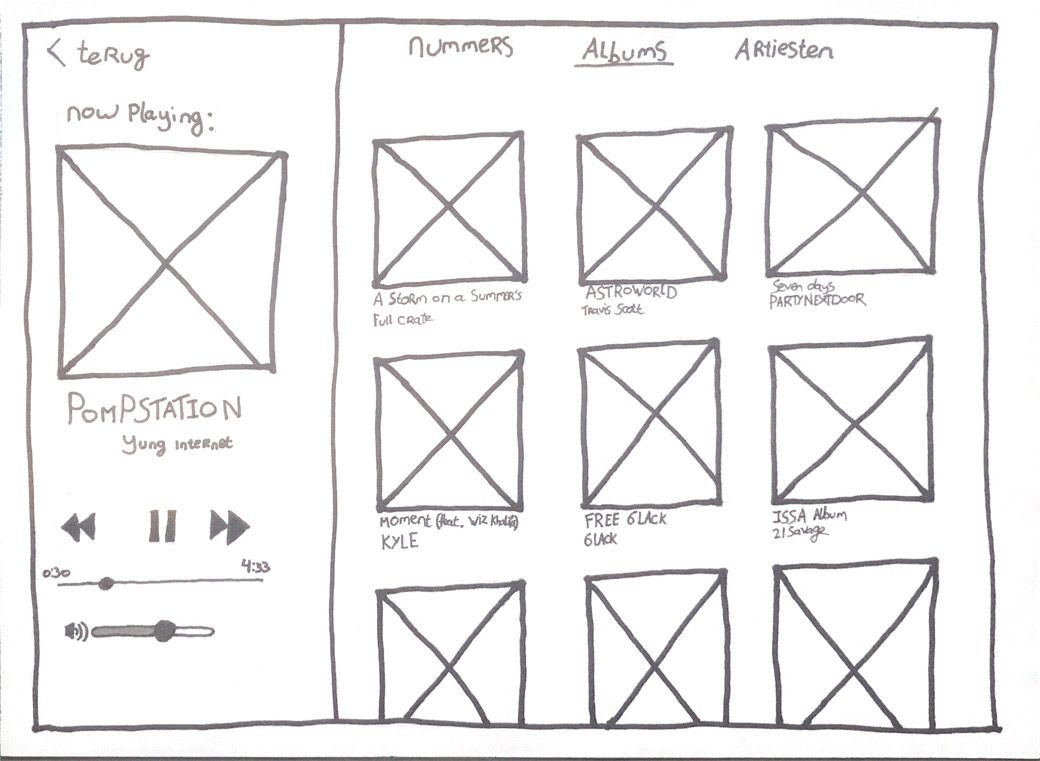
UI Design
With the help of the wireframes I designed the user interface.
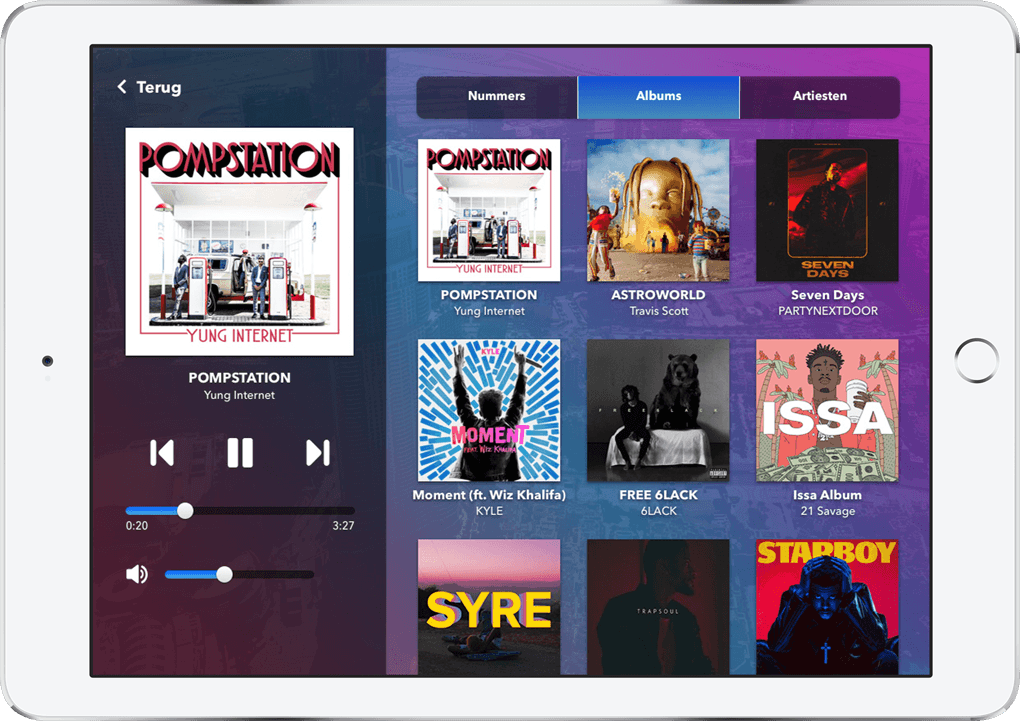
The animations
This video is also available on Youtube
Final thoughts
Using Principle for UI animations was not difficult to learn. The interface is easy and logical to use. In addition, the program is also quite light, which is very nice when you work with animations. I have not seen any stuttering images whatsoever. Importing Sketch files is also very smooth, but there are a few things to keep in mind when importing a Sketch file, in which I encountered some frustrations.
When importing a sketch file, only the visible layers are included in Principle. And because Principle looks at the property differences of each layer between screen A and screen B, this means that all layers must actually be present in screen A and screen B. So if you transition between two completely different screens, your design will look very messy. Below such an example.
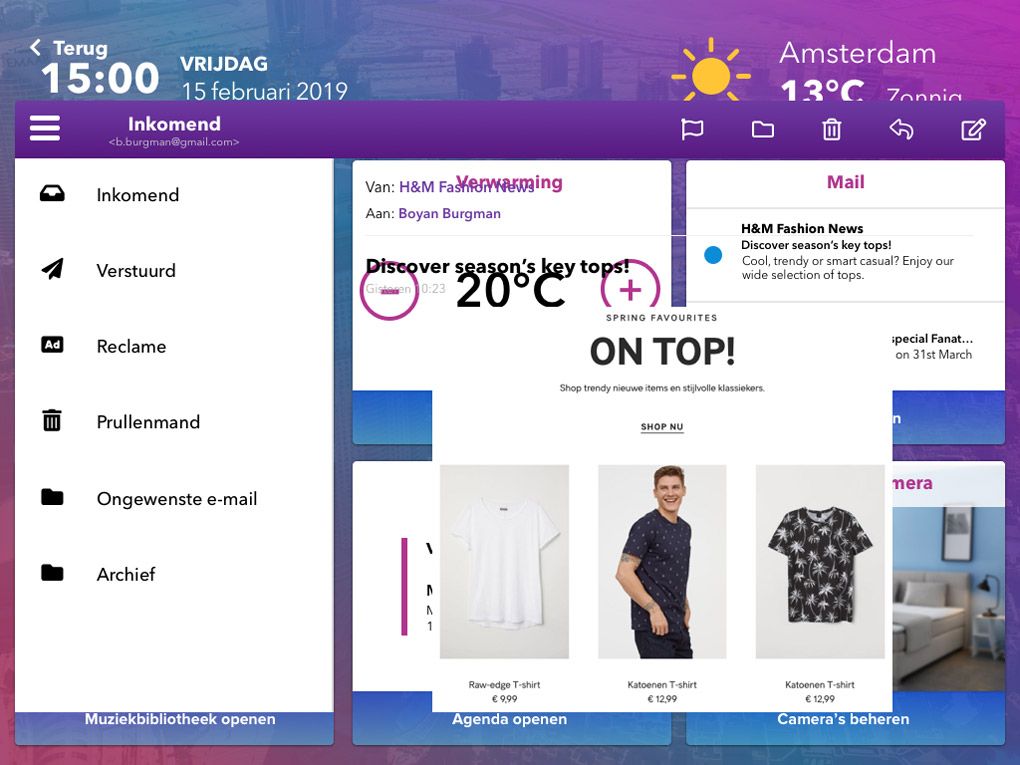
The view in Principle for Screen A
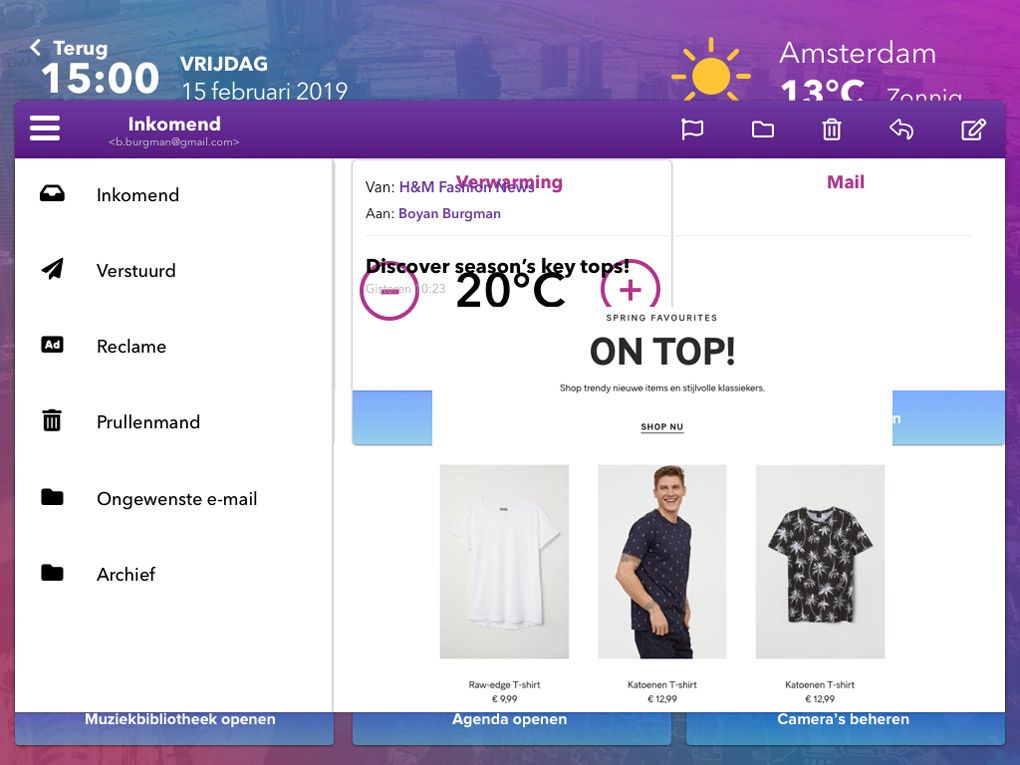
The view in Principle for Screen B
The layers of screens A and B must also have the same folder structure. And doing all of that properly takes time and effort. I had a lot of trouble with that in the beginning, but in the end it became easier. After importing it is just a matter of giving all unnecessary layers an opacity of 0 and changing the position for a nice animation when the layer appears.
Another frustration in Principle is that you cannot change certain things after importing a Sketch file. For example, I found out that I made a typo, but I had already started animating. To get rid of this typo I had to edit the Sketch file and import it again. Because of this I had to do the animations all over again. The reason that you can no longer change texts, colors, etc. is because Principle creates a bitmap image of every layer, with the exception of vectors. It can be useful to work with vectors as much as possible, but to save a simple rectangle or text as a vector file and then import it into Principle also takes a lot of time.
Will I keep using Principle?
Maybe.
Principle is a nice application, but not quite what I was looking for. I thought importing Sketch files would be a great feature. Ok well... it's a great feature, but the things that come with it such as the correct setup of all layers etc., I don't really like that and it also takes a lot of time and effort. It is also very annoying if you cannot make small changes to the design while you are animating.
Therefore I prefer creating animations to be implemented in a design application such as Sketch. I know that Invision Studio works almost like Sketch and you can add animations in this application too. In addition, Framer is also a very powerful application, where almost everything is possible, because you can run your designs partly on code. These are two applications that are very interesting to try out. Since I already have some affinity with writing code, I think it would be more fun to try out Framer. After trying this application, I can make a better comparison and pick one.